So you want to reuse your list of SVN repositories in another WORKSPACE or in another install of eclipse.
If you use Subversive it is very easy to backup your SVN repositiories:
This is done by simply going to File -> Export -> Select from General -> Preferences.
Then on the next step you can tick from a list the preferences you want to export.
In this list, SVN preferences and SVN repositories should be included.
I have found no way of doing this in Subclipse, so here is a manual method.
NB though it is a total copy, there is no way to just copy a limited set of SVN repositories.
Navigate to the dir YOUR_WORKSPACE/.metadata/.plugins/org.tigris.subversion.subclipse.core In there there is a file '.svnProviderState'
This is a binary file but just copy this to the new WORKSPACE in the equivelent directory & that is it.
(Thanks to a colleague at work - Philip Lau for this)
Showing posts with label eclipse. Show all posts
Showing posts with label eclipse. Show all posts
Friday, 8 May 2015


Tuesday, 15 April 2014
Eclipse & the error 'Specified VM install not found: type Standard VM, name'
Scenario:
- I had a project that was previously building OK
- At some point I upgraded the version of java
- Came to rebuild the project and the Ant build was failing with the error popup
- Specified VM install not found: type Standard VM, name
- & it was referring to an old JDK that did not exist on my PC & was not referred to by eclipse with the list of installed JREs
- I searched in the project for the JDK listed 'jdk1.6.0_26'
- No luck - could not find anythine
- I deleted the project & reloaded it from SVN
- Still No luck - I got the same error
After a bit of googling, I found this site http://www.javaworkspace.com/VMNotFound.do
I went for option '2' of edting the launch file in the directory simply renaming the JDK after stopping eclipse.
- C:\projects\WORKSPACE\.metadata\.plugins\org.eclipse.debug.core\.launches
All sorted now thanks.
Tuesday, 17 September 2013
eclipse extension bundle timeout errors
If you find that eclipse is failing to install bundles or extensions with timeout errors then try adding this line to your INI file.
-Dsun.net.client.defaultReadTimeout=30000
I use the spring sourse STS variant of eclipse so my file is called STS.ini but yours might be ECLIPSE.ini
-Dsun.net.client.defaultReadTimeout=30000
I use the spring sourse STS variant of eclipse so my file is called STS.ini but yours might be ECLIPSE.ini
Tuesday, 12 June 2012
Copying files in eclipse was failing & creating a Snippet.java
When trying to copy a file from one project to another instead of copying the file it creates a file Snippet.java with the file name inside a main method.
WTF?
Today I sussed it with some help from the wonderful stackoverflow.
Bizarrely the cause was the Skype 'Click to Call' extension in Chrome.
The stackoverflow solution suggests an upgrade to the extension might fix it but as I do not use skype from my work PC I simply deleted the extension
Wednesday, 4 January 2012
Multiple search windows in eclipse
This is a really simple but cute little feature.
If you pin one search window using the pin icon at the right hand end of buttons then the next time you do a search eclipse will open up a new Search window.
There is also a search history that you can look through just to the left of the pin icon.
If you pin one search window using the pin icon at the right hand end of buttons then the next time you do a search eclipse will open up a new Search window.
There is also a search history that you can look through just to the left of the pin icon.
Friday, 20 August 2010
IntelliJ Live Templates for Eclipse ...more
This is an update from an earlier post of mine so save me following two links & then having to edit the file.
To Import them into eclipse go to Window -> Preferences -> Java -> Editor -> Templates and import away.
To Import them into eclipse go to Window -> Preferences -> Java -> Editor -> Templates and import away.
<?xml version="1.0" encoding="UTF-8" ?>
<templates>
<template autoinsert="true" context="java" deleted="false" description="iterate over array with temporary variable" enabled="true" name="itar">for (int ${index} = 0; ${index} < ${array}.length; ${index}++) { ${array_type} ${array_element} = ${array}[${index}]; ${cursor} }</template>
<template autoinsert="true" context="java" deleted="false" description="iterate over collection" enabled="true" name="itco">for (Iterator ${iterator} = ${collection}.iterator(); ${iterator}.hasNext(); ) { ${type} ${element} = (${type}) ${iterator}.next(); ${cursor} }</template>
<template autoinsert="true" context="java" deleted="false" description="iterate with enumeration" enabled="true" name="iten">while (${enumeration}.hasMoreElements()) { ${type} ${element} = (${type}) ${enumeration}.nextElement(); ${cursor} }</template>
<template autoinsert="true" context="java" deleted="false" description="iterate over an array or Iterable" enabled="true" name="iter">for (${iterable_type} ${iterable_element} : ${iterable}) { ${cursor} }</template>
<template autoinsert="true" context="java" deleted="false" description="iterate with iterator" enabled="true" name="itit">while (${iterator}.hasNext()) { ${type} ${element} = (${type}) ${iterator}.next(); ${cursor} }</template>
<template autoinsert="true" context="java" deleted="false" description="iterate over list elements" enabled="true" name="itli">for (int ${i} = 0; ${i} < ${list}.size(); i++) { ${type} ${element} = (${type}) ${list}.get(${i}); ${cursor} }</template>
<template autoinsert="true" context="java" deleted="false" description="public static final" enabled="true" name="psf">public static final ${} = ${cursor};</template>
<template autoinsert="true" context="java" deleted="false" description="public static final int" enabled="true" name="psfi">public static final int ${} = ${cursor};</template>
<template autoinsert="true" context="java" deleted="false" description="public static final String" enabled="true" name="psfs">public static final String ${} = ${cursor};</template>
<template autoinsert="true" context="java" deleted="false" description="main method" enabled="true" name="psvm">public static void main(String[] args) { ${cursor} }</template>
<template autoinsert="true" context="java" deleted="false" description="public void test" enabled="true" name="pvt">public void test${NAME}() throws Exception { ${cursor} }</template>
<template autoinsert="true" context="java" deleted="false" description="print to standard error" enabled="true" name="serr">System.err.println(${word_selection}${});${cursor}</template>
<template autoinsert="true" context="java" deleted="false" description="print to standard out" enabled="true" name="sout">System.out.println(${word_selection}${});${cursor}</template>
<template autoinsert="true" context="java" deleted="false" description="print method name to system out" enabled="true" name="soutm">System.out.println("${enclosing_type}.${enclosing_method}(${enclosing_method_arguments})"); ${cursor}</template>
<template autoinsert="true" context="java" deleted="false" description="print variable out to System out" enabled="true" name="soutv">System.out.println("${VALUE} = " + ${VALUE});</template>
<template autoinsert="true" context="java" deleted="false" description="public void test" enabled="true" name="test">public void test${NAME}() throws Exception { ${cursor} }</template>
</templates>
Monday, 5 July 2010
Getting eclipse to connect to a running tomcat
Firstly tomcat needs to set up to allow a debug connection.
These instructions are for windows - sorry.
Now go to eclipse.
If you want to save that config to use again do the following
These instructions are for windows - sorry.
- Go to the tomcat/bin directory and run tomcat6w.exe
- Click on the java tab
- To connect on port 8002 add the line:
-agentlib:jdwp=transport=dt_socket,server=y,suspend=n,address=8002 - And start tomcat normally
Now go to eclipse.
- Go the Debug perspective
- Click on the 'bug' arrow and select 'Debug Configurations'
- Double click 'Remote Java Application'
- Give it a name EG 'tomcat'
- Select the project
- Select the server if it is not localhost (the default)
- Select the port that you used above eg 8002
- Click on the 'debug' button and you are now debugging the tomcat session.
If you want to save that config to use again do the following
- Click on the 'bug' arrow and select 'organise Favourites'
- Select 'Add'
- Search down for the name of the debug session and tick the box
- Select OK.
Thursday, 23 July 2009
Eclipse, workspaces and JREs
Be aware that installed JREs are workspace specific.
IE. Your default JRE might be the MyEclipse 6.0.
You install and add Java 1.5 JRE and make this your default.
Then three months later you create a new workspace.
Low and behold this new workspace does not know about the 1.5 JRE.
Monday, 15 June 2009
Eclipse - java.lang.RuntimeException unable to get class information for @throws tag for SomeException
Working in Eclipse, I had a previously working project that I had closed.
After reopening it I found it was littered with apparent errors,
that were not there before.
Somehow checkstyle had got confused. Simply turning checkstyle off and back on again removed all the errors.
After reopening it I found it was littered with apparent errors,
that were not there before.
Somehow checkstyle had got confused. Simply turning checkstyle off and back on again removed all the errors.
Thursday, 14 May 2009
Eclipse Hot Keys and the language bar on Windows
I like to use Eclipse Hot Keys and two of my favourites are Ctrl+Shift+R (open a resource) and the very similar Ctrl+Shift+T.
Sometimes when in eclipse I would do something and suddenly find the double quote and '@' keys (among others) had swopped.
I sussed out that somehow I was changing my keyboard settings from English UK to English US. I left it at that now I knew I could fix it.
Today I sussed out why and how to stop it happening again.
The hot keys to change the language is Ctrl+Shift and I must have been missing off the R or T.
So assuming you do not want to change the keyboard from one to the other at all or not too often you have two options:
a) disable the hot keys
b) remove the language you do not want.
To do this go to: Contol Panel->Regional & Language options->Languages->Details.
If you want to disable the hot keys select Key Settings->'Change Key Sequence'.
If you want to remove one of the languages, select one and then select 'remove'
Sometimes when in eclipse I would do something and suddenly find the double quote and '@' keys (among others) had swopped.
I sussed out that somehow I was changing my keyboard settings from English UK to English US. I left it at that now I knew I could fix it.
Today I sussed out why and how to stop it happening again.
The hot keys to change the language is Ctrl+Shift and I must have been missing off the R or T.
So assuming you do not want to change the keyboard from one to the other at all or not too often you have two options:
a) disable the hot keys
b) remove the language you do not want.
To do this go to: Contol Panel->Regional & Language options->Languages->Details.
If you want to disable the hot keys select Key Settings->'Change Key Sequence'.
If you want to remove one of the languages, select one and then select 'remove'
Friday, 25 July 2008
OutOfMemory Error from eclipse
I know there are hundreds of blog entries covering this. Here is another.
I followed the general scriptures and set the values in my eclipse.ini file. Currently mine looks like this:
However I was still getting OutOfMemory errors when trying to run an ant test coverage task. Why ?
I solved the problem, or should I say I have not seen the problem since I did the following:
In eclipse go to:
Window->Preferences->Java->Installed JREs.
Select the JRE that you are using and select 'Edit'.
Then add the following to the 'Default VM Aguments'
-Xms128m -Xmx1024m -XX:MaxPermSize=256m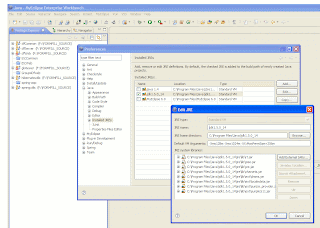
I followed the general scriptures and set the values in my eclipse.ini file. Currently mine looks like this:
-showsplash
com.genuitec.myeclipse.product
--launcher.XXMaxPermSize 256m
-vmargs
-Xms128m
-Xmx1024m
-Duser.language=en
-XX:PermSize=128M
-Xss2m
-XX:MaxPermSize=256M
However I was still getting OutOfMemory errors when trying to run an ant test coverage task. Why ?
I solved the problem, or should I say I have not seen the problem since I did the following:
In eclipse go to:
Window->Preferences->Java->Installed JREs.
Select the JRE that you are using and select 'Edit'.
Then add the following to the 'Default VM Aguments'
-Xms128m -Xmx1024m -XX:MaxPermSize=256m

Wednesday, 11 June 2008
In line searching in Eclipse & IE7
I hate the search pop up window you get when you type Ctrl-F in many applications.
I searched for an add-on but eventually found that Eclipse already provide it but under the odd title of 'Incremental Find'
Type Ctrl-J and the words 'Incremental Find' will appear at the bottom of your window.
Simply type away with the text you want to search for.
The cursor will automatically jump to the next occurance of that string.
Ctrl-J will then make the cursor jump too the next.
Shift-Ctrl-J will jump backwards.
And I have just discoverred this. If you type the search word
all in lower case then the search is case insensitive. If you mix case then the search is case specific.
It had been bugging me that IE7 was the same.
Then I found this add-on
After a quick try it appears to do the job.
I searched for an add-on but eventually found that Eclipse already provide it but under the odd title of 'Incremental Find'
Type Ctrl-J and the words 'Incremental Find' will appear at the bottom of your window.
Simply type away with the text you want to search for.
The cursor will automatically jump to the next occurance of that string.
Ctrl-J will then make the cursor jump too the next.
Shift-Ctrl-J will jump backwards.
And I have just discoverred this. If you type the search word
all in lower case then the search is case insensitive. If you mix case then the search is case specific.
It had been bugging me that IE7 was the same.
Then I found this add-on
After a quick try it appears to do the job.
Wednesday, 5 March 2008
IntelliJ Live Templates for Eclipse
D you miss all those IntelliJ Templates when in Eclipse.
If so, then go thekua.com for all the instructions you need.
If so, then go thekua.com for all the instructions you need.
Tuesday, 26 February 2008
Eclipse on ubuntu throws ClassNotFoundException
I have just performed a fresh install on my pc with the latest ubuntu 7.10 (Gutsy Gibbon). After installing Eclipse I got the following Exception java.lang.ClassNotFoundException: org.eclipse.core.runtime.Plugin
The problem is that the default java that is installed is not compatible.
ls -l /usr/bin/java
lrwxrwxrwx 1 root root 22 2008-02-26 14:52 /usr/bin/java -> /etc/alternatives/java
The solution is to install the latest version of java from www.sun.com
and change the java link in /usr/bin. I installed this in /tools/java6 and then created a link called java
cd /tools
sudo ln -fs /tools/java6 java
cd /usr/bin
sudo mv java java_alternatives
sudo ln -fs /tools/java/jdk/bin/java
Subscribe to:
Posts (Atom)


